

Send a test email
Send a test email from BooleanSMTP's Test Email screen, then confirm delivery in Email Logs.
Send a test email to confirm a connection works, whether you’re finishing the setup wizard or checking a connection you added later.
- In the BooleanSMTP sidebar, click Test Email.
- In Select Mailer, choose the connection you want to test.
- In To Address, enter an address you can check right now.
- Click Send Test Email.
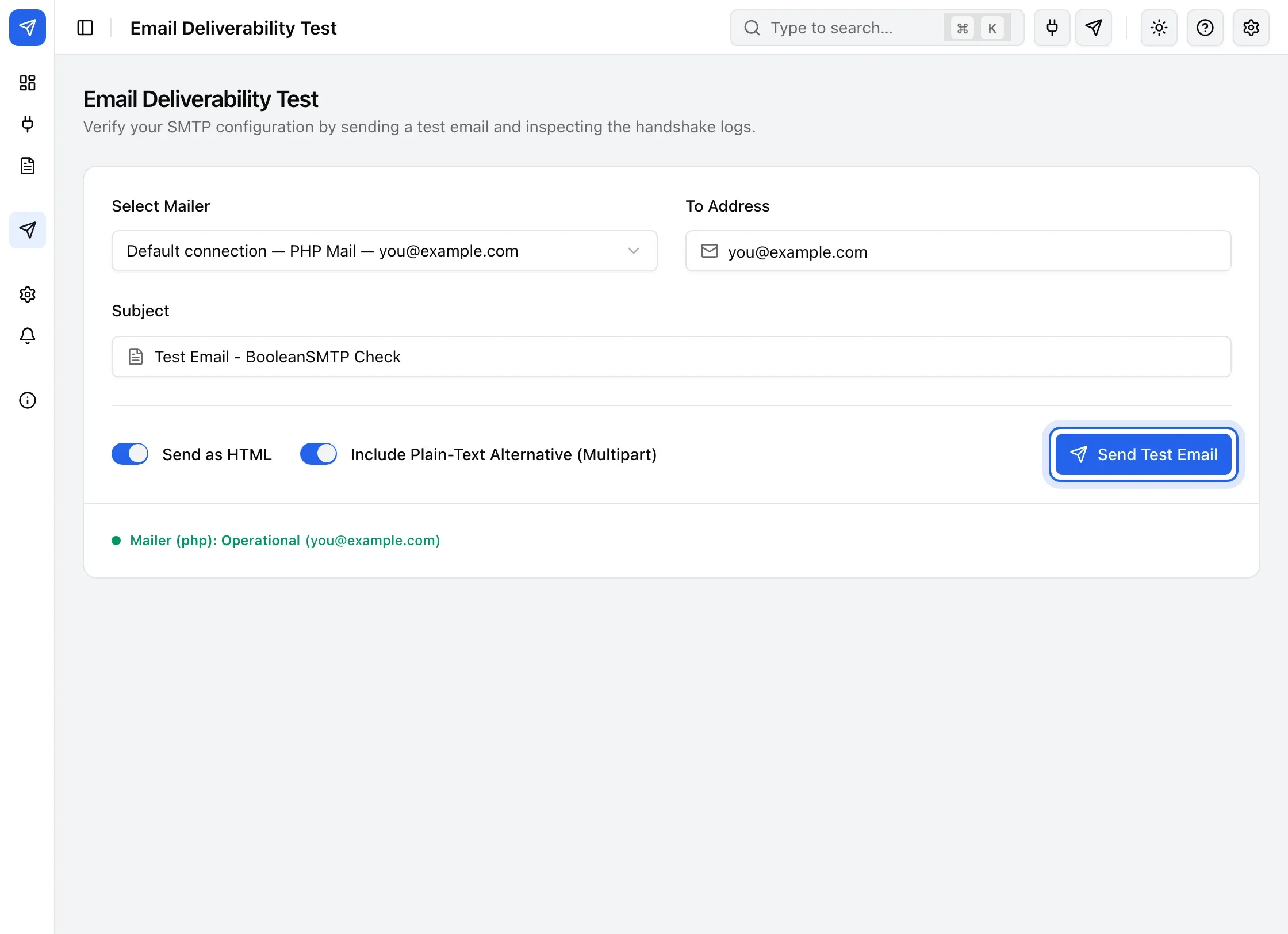
You see Test email sent successfully! when the provider accepted the message. Check that inbox — and its spam folder — for the email.
If you see Test email failed to send, the message under it is the provider’s reason. The most common causes are a mistyped key or password and a From address the provider has not verified.
Check that it was delivered
Section titled “Check that it was delivered”Click Logs in the BooleanSMTP sidebar. Email Logs lists every email your site sent, newest first. The tabs filter them: All, Successful, Simulated, Failed and Pending.
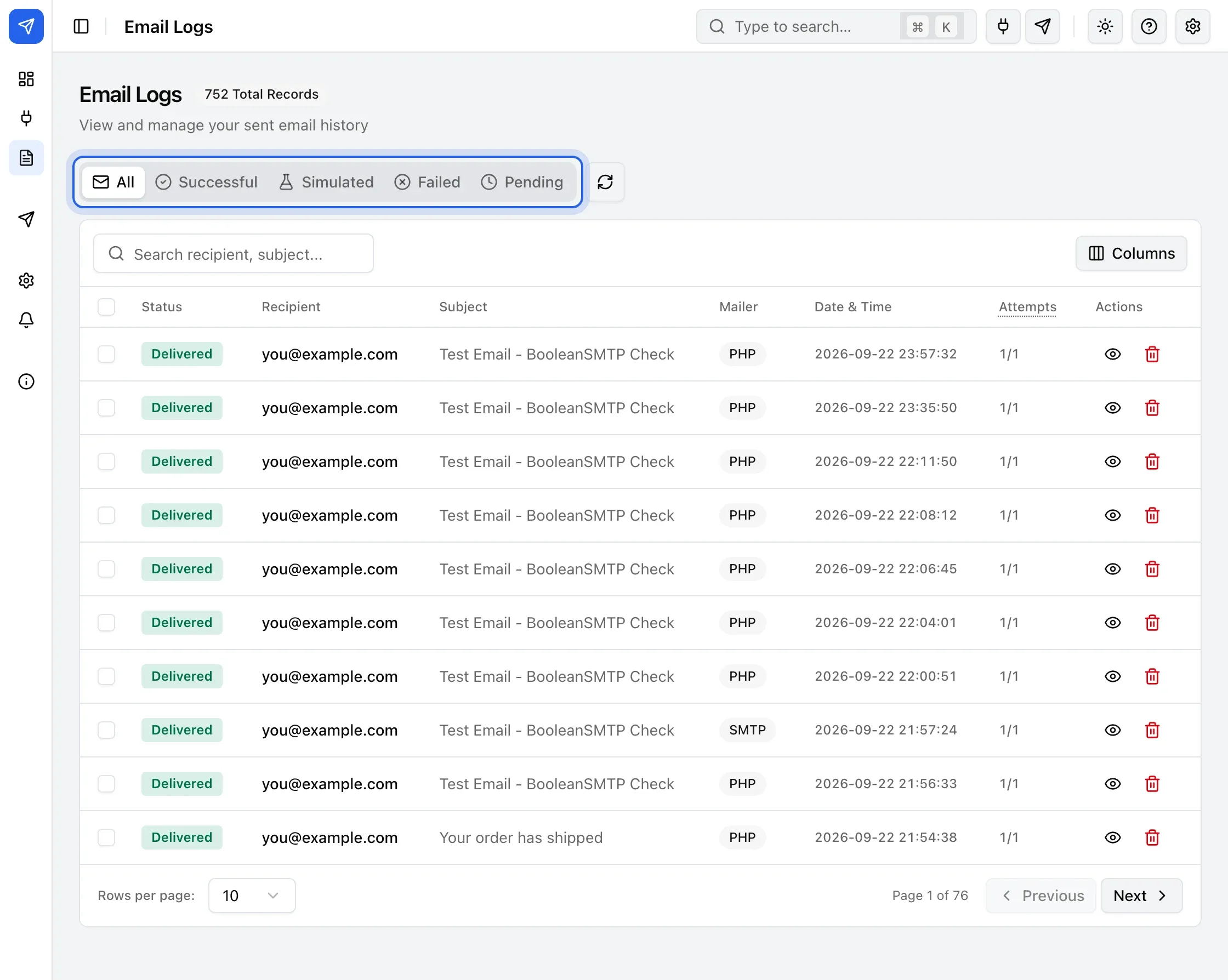
Your test email should be under Successful. Click it to see its details.
Next steps
Section titled “Next steps”- Logs — more about what’s recorded and how long it’s kept.
- Choose a mailer if the test failed and you want to try a different provider.
- Troubleshooting if the test keeps failing.