

Microsoft 365 / Outlook
Connect Microsoft 365 or Outlook.com to BooleanSMTP through Microsoft Graph with an Azure app registration, then send a test email.
BooleanSMTP connects to Microsoft 365 or Outlook.com through the Microsoft Graph API only — there is no SMTP mode. Microsoft has disabled SMTP AUTH Basic Authentication by default on new tenants, and there is no app-password equivalent for a Microsoft 365 mailbox, so Graph is the only path.
Before you begin
Section titled “Before you begin”- Access to the Microsoft Entra admin center to register an app.
- The mailbox address you’ll send from — a personal
outlook.com/hotmail.com/live.com/msn.commailbox and a paid Microsoft 365 work/school mailbox both work.
Add the connection
Section titled “Add the connection”- In the Microsoft Entra admin center, go to App registrations → New registration and register a Web app, using the account type based on who should sign in (see Tenant ID below).
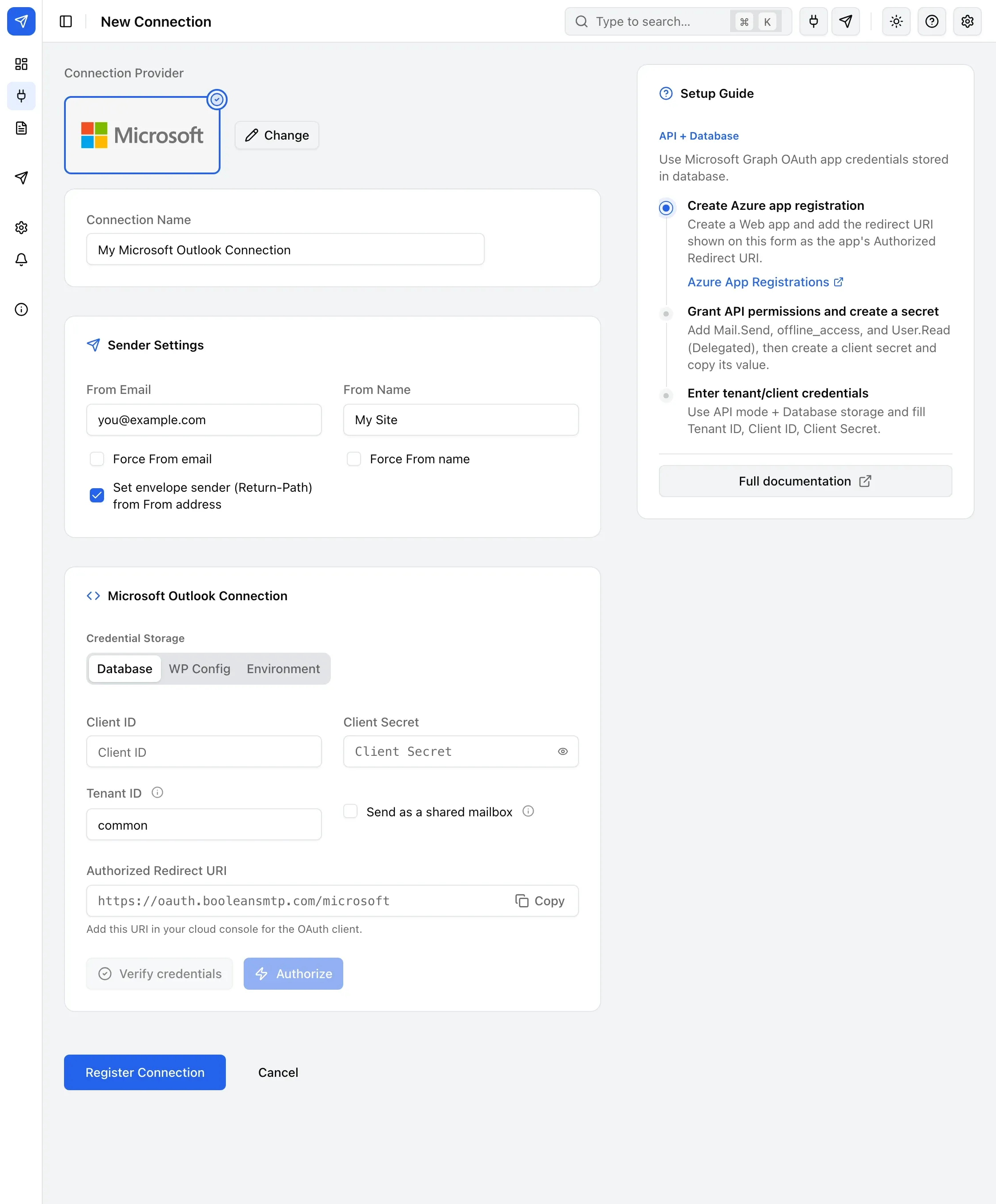
- Under Redirect URI, paste the exact value BooleanSMTP shows on the connection form (step 6).
- Go to Certificates & secrets → New client secret, and copy the Value immediately — Microsoft shows it once.
- Go to API permissions → Add a permission → Microsoft Graph → Delegated permissions, and add
Mail.Send,User.Read, andoffline_access(addMail.Send.Sharedtoo for a shared mailbox). - In your WordPress admin, go to BooleanSMTP → Mailers, click Add Connection, and choose Microsoft Outlook.
- Under Sender Settings, fill in From Email and From Name, then fill in Client ID and Client Secret from step 3, and set Tenant ID (see below).
- Click Authorize, complete Microsoft’s consent screen, then click Register Connection.
Tenant ID
Section titled “Tenant ID”Leave Tenant ID as common unless you need to restrict sign-in to one organization — then use your tenant’s GUID (Entra admin center → your app → Overview → Directory (tenant) ID). BooleanSMTP then shows a Grant admin consent for your organization link so an administrator can approve the app for everyone at once.
Sending as a shared mailbox
Section titled “Sending as a shared mailbox”Enable Send as a shared mailbox, set From Email to the shared mailbox’s address, and authorize with an account that has Exchange “Send As” or “Send on behalf” rights to that mailbox — not the shared mailbox’s own login.
Send a test email
Section titled “Send a test email”Use Test Email in the sidebar to confirm the connection works — see Send a test email for the steps.
Common errors
Section titled “Common errors”- “redirect_uri_mismatch” — the URI pasted into the Entra app registration doesn’t exactly match the one BooleanSMTP shows on the connection form.
- 401 with an empty body on
/me/sendMail, but/mereturns 200 — the signed-in identity has no mailbox in this tenant (often a guest#EXT#account); reconnect with a mailbox-enabled account. - “…does not have the right to send mail on behalf of the specified sending account” — the authorizing account lacks Exchange delegate rights to the mailbox in From Email; see Sending as a shared mailbox above.